Timesheets — Employee Guide (Shifty Web)
Overview
The Timesheets screen in the Shifty web portal is one of three interfaces you may use to enter and track your work hours. If your customer location is configured for web-based time entry, this is where you enter your hours, submit them for approval, and follow your timecards through the entire pay cycle — all the way to payroll processing.
Info
Shifty offers three time entry interfaces depending on your customer location's setup: the web portal (covered in this guide), the mobile app, and the kiosk. If your location uses the mobile app or kiosk for clocking in and out, refer to those guides instead.
Who This Guide Is For
This guide is for employees (associates) who use the Shifty web portal to enter their hours, confirm shift details, and track the approval status of their timecards.
Getting Started
- Log in to the Shifty web portal using your organization's link.
- In the left sidebar, navigate to Timesheets.
- The screen opens on the Pending Associate Action tab — these are the shifts that need your attention first.
- Use the Date range filter at the top to adjust the time period shown. By default it covers the current pay period.
- Click Apply Filters to refresh results.
Understanding the Tabs
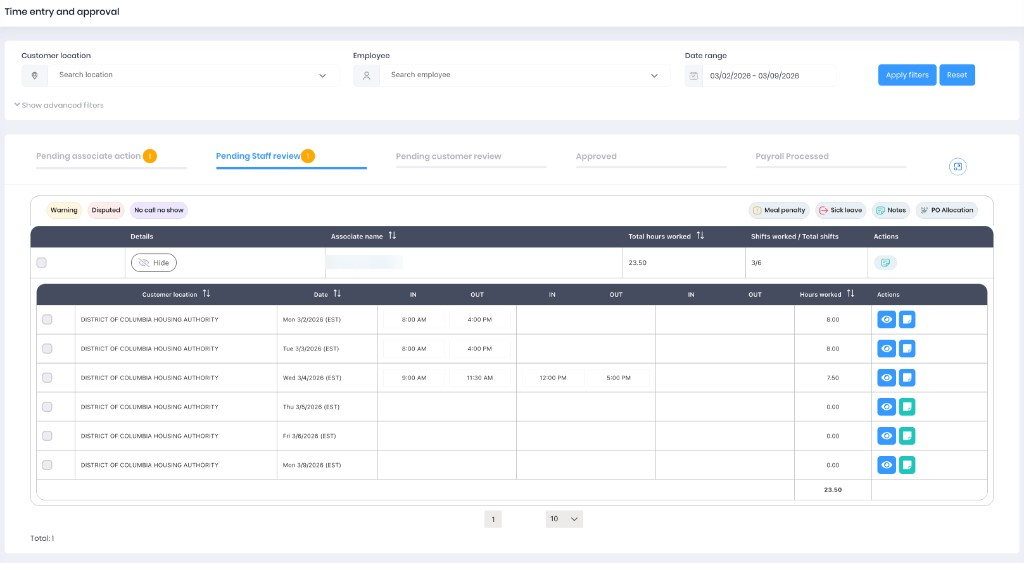
You can see all five status tabs and their count badges. This gives you full visibility into where your timecards are in the approval pipeline — from the moment a shift is created through final payroll processing.
| Tab | What It Means for You |
|---|---|
| Pending Associate Action | Action needed. These shifts are waiting for you to enter or confirm your hours. |
| Pending Staff Review | Your hours have been submitted and are being reviewed by your staffing manager. No action needed from you at this stage. |
| Pending Customer Review | Your timecard has passed staff review and is waiting for the customer to approve. No action needed. |
| Approved | Your hours have been approved and are ready for payroll. No action needed. |
| Payroll Processed | Your hours have been processed for payment. You can review your finalized records, including clock-in/out times, break details, and total hours paid. |
Info
You can click on any tab at any time to check the status of your timecards at that stage — including the Payroll Processed tab to review your payment history. While you can see all tabs, you can only make edits when a timecard is in the Pending Associate Action tab.
Entering Your Hours
When you have shifts in the Pending Associate Action tab, follow these steps:
For a Single Shift
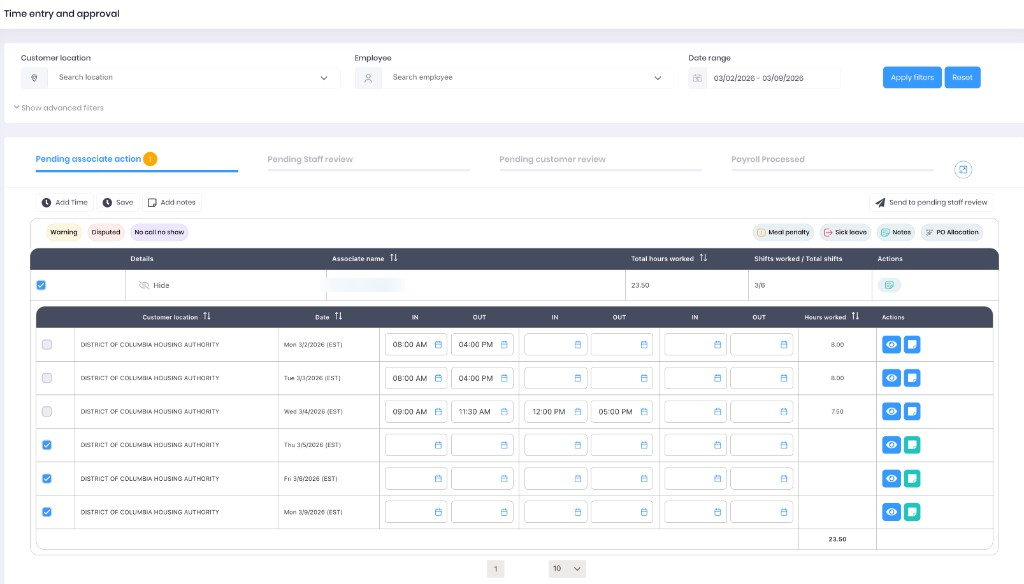
- Click Show next to your name to expand and see your individual shifts.
- Each shift row shows the customer location, date, and a sequence of IN and OUT time fields.
- The time fields are sequential — fill them in order from left to right:
- First IN — your clock-in time (start of shift)
- First OUT — your first break start (or clock-out if no breaks)
- Second IN — your return from first break
- Second OUT — your second break start (or clock-out if only one break)
- If you have a second break, the pattern continues: Third IN (return from second break) and the final OUT (clock-out)
- The last OUT field is always your final clock-out time for the shift.
- Click Save in the toolbar at the top to submit your entry.
For Multiple Shifts
If you have several shifts to fill in with the same hours:
- Select the checkboxes next to each shift you want to update.
- Click Add Time in the toolbar.
- Enter the Clock In time in the dialog that opens.
- Fill in break times if applicable.
- Enter the Clock Out time.
- Review the Results preview at the bottom to confirm the hours look correct.
- Click Save to apply to all selected shifts.
Understanding Job Categories
If you are assigned to multiple job orders at the same customer location, you'll see the job category displayed on each shift row so you can identify which job each timecard belongs to.
Viewing Your Timecard Details
Click the eye icon (blue button) in the Actions column on any shift row to open a detail panel. From here you can view:
- Notes — messages from your staffing manager or the customer
- Sick Leave — any sick leave entries recorded for the shift
- PO Allocation — if your shift is split across multiple PO Numbers, you can see how hours are distributed
Adding Notes
You can add notes to your timecards to communicate with your staffing manager:
- Select one or more shift rows using the checkboxes.
- Click Add Notes in the toolbar.
- Type your note in the text field.
- Click Save.
Your notes are visible to your staffing manager and can help explain any discrepancies or special circumstances.
Tracking Your Timecard Through the Full Cycle
After you submit your hours, your timecard moves through the approval pipeline. You can follow it at every stage — nothing disappears from view.
- Click the Pending Staff Review tab to see timecards currently being reviewed by your staffing manager.
- Click Pending Customer Review to see timecards waiting for the customer's approval.
- Click Approved to confirm which timecards have been approved for payroll.
- Click Payroll Processed to review your finalized records and verify the hours that were paid.
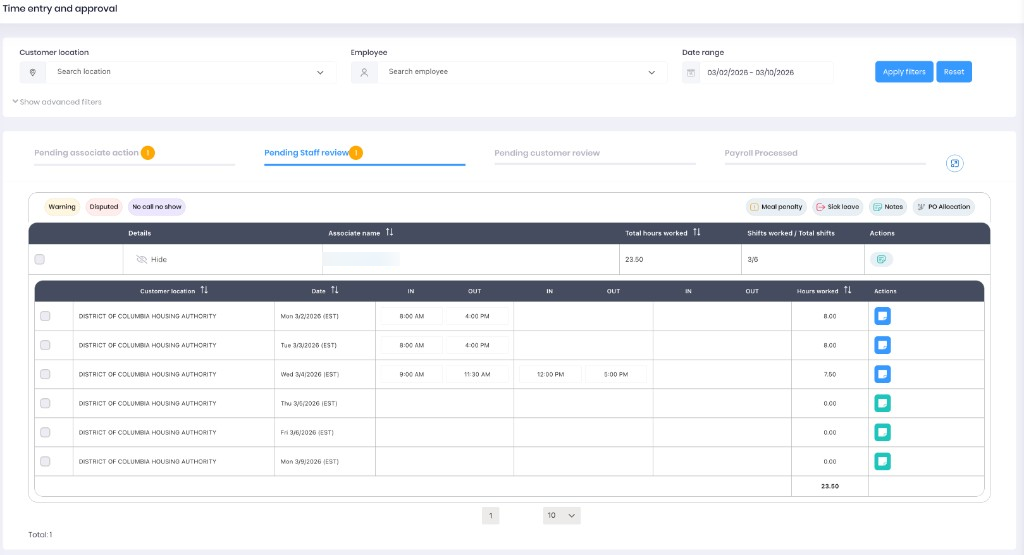
Each tab shows a count badge so you can quickly see how many timecards are at each stage.
Reviewing Payroll-Processed Records
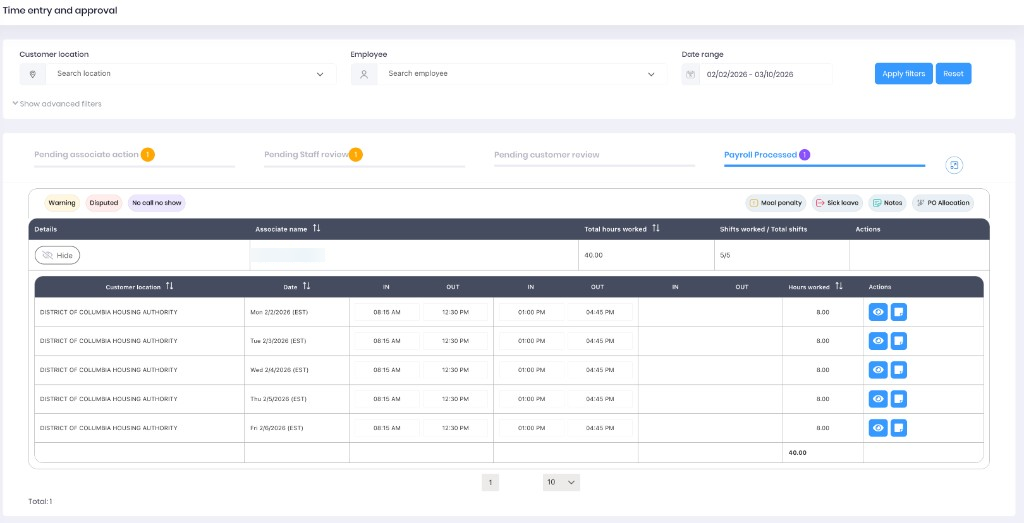
The Payroll Processed tab gives you a complete record of all timecards that have been paid. Use this tab to:
- Verify clock-in and clock-out times that were submitted for payment
- Review break details and total hours for each shift
- Check notes from earlier stages of the approval process
- Confirm your total hours worked across a pay period
Info
Adjust the Date range filter to look back at previous pay periods. This is useful when cross-referencing your pay stubs or checking historical records.
What Happens When a Timecard Is Sent Back
If your staffing manager or the customer sends a timecard back to the Pending Associate Action tab, it means a correction is needed. Look for:
- A note attached to the timecard explaining what needs to be fixed
- The timecard will reappear in your Pending Associate Action tab
Warning
After making corrections, saving alone is not enough. You must send the timecard back for approval by clicking Send to Pending Staff Review so it re-enters the approval pipeline.
Tips & Best Practices
- Enter your hours promptly. Timecards in the Pending Associate Action tab are waiting on you — submitting quickly helps your team meet payroll deadlines.
- Double-check break times. Incorrect break entries are the most common reason timecards get sent back for corrections.
- Use notes to explain unusual situations. If you worked different hours than scheduled or had an issue during your shift, add a note so your staffing manager has context.
- Check all tabs regularly. Monitoring every tab — including Payroll Processed — helps you stay on top of your hours and catch issues early.
- Review your Payroll Processed records. After each pay cycle, check the Payroll Processed tab to confirm your hours match what you expected.
Troubleshooting
| Issue | Solution |
|---|---|
| I don't see my shift in the Pending tab | Check the date range filter — your shift may fall outside the current date range. Click Reset to clear filters and look again. |
| I can't edit a timecard | You can only edit timecards in the Pending Associate Action tab. If the card has moved to a later status, contact your staffing manager if a correction is needed. |
| My hours show as 0.00 | Expand your row by clicking Show and check if time entries are filled in for each shift. If the IN/OUT fields are empty, enter your hours. |
| I see a warning on my timecard | Warnings indicate a potential issue (e.g., break time exceeding limits). Review your time entries and correct any errors before saving. |
| My timecard was sent back | Read the attached note for instructions on what to correct, make the changes, then click Send to Pending Staff Review to resubmit for approval. |
| I can't find a processed timecard | Expand the Date range filter to cover the pay period you're looking for, then check the Payroll Processed tab. |