Clocking In, Taking Breaks, and Clocking Out in the Array Corp Careers App
Step 1: Log into the App
- Open the Array Corp Careers mobile app on your device.
- Enter your username and password.
- Click Sign In to access your dashboard.
Step 2: Clocking In
- On the Home tab, locate today's shift card at the top of the screen.
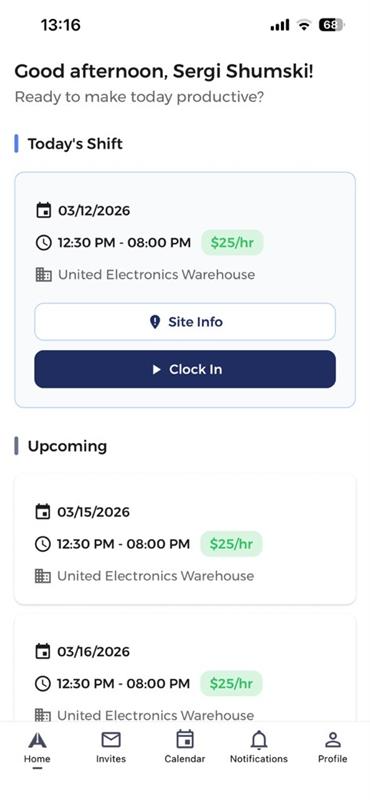
- When the Clock In button appears, tap it to begin the check-in process. The button becomes available based on the early check-in window set by your staffing agency for each customer location (for example, 5 minutes, 10 minutes, or 30 minutes before your shift).
- Review your shift details, including:
- Shift start and end time.
- Location of the shift.
- Take a photo of yourself at your work location (e.g., with a truck, in a warehouse).
- Review the captured photo and confirm your location.
- Click Confirm to finalize check-in.
- Once checked in, the app will start tracking your worked time (seconds, minutes, and hours).
Step 3: Taking a Break
- On the Home tab, tap Take Break.
- Once your break is over, you will receive a notification.
- Open the app and select End Break.
Ending a break early:
- Select End Break to end your break.
- The system will prompt you with a confirmation message.
- Confirm the action to finalize early break termination.
- Early termination of a break should only be done in case of an emergency or with direct approval from a manager.
Step 4: Clocking Out
- On the Home tab, tap Clock Out.
- Review the Check-Out Summary, which includes:
- Worked time.
- Clock-in and clock-out times.
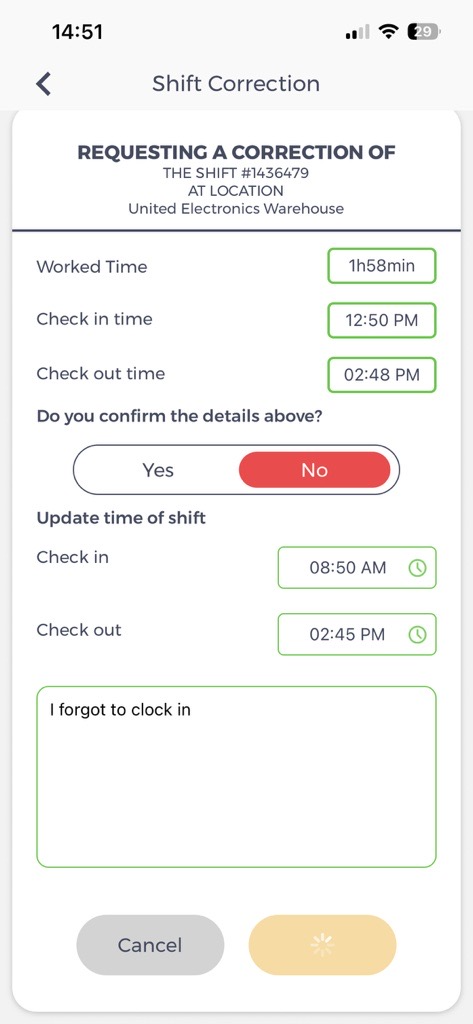
- If you clocked in at the wrong time, you can update the check-in time before checking out:
- Click No when asked if the details are correct.
- Adjust the check-in or check-out time as needed.
- Leave a note explaining why the time is being updated.
- Click Check Out once the time is correct.
- If your location and service do not register correctly, the app may prompt you to retry before completing check-out.
- After checking out, your completed shift will display its current status (e.g., Needs review, Pending staff review, Pending customer review, Approved, or Rejected) so you can track where it is in the approval pipeline.
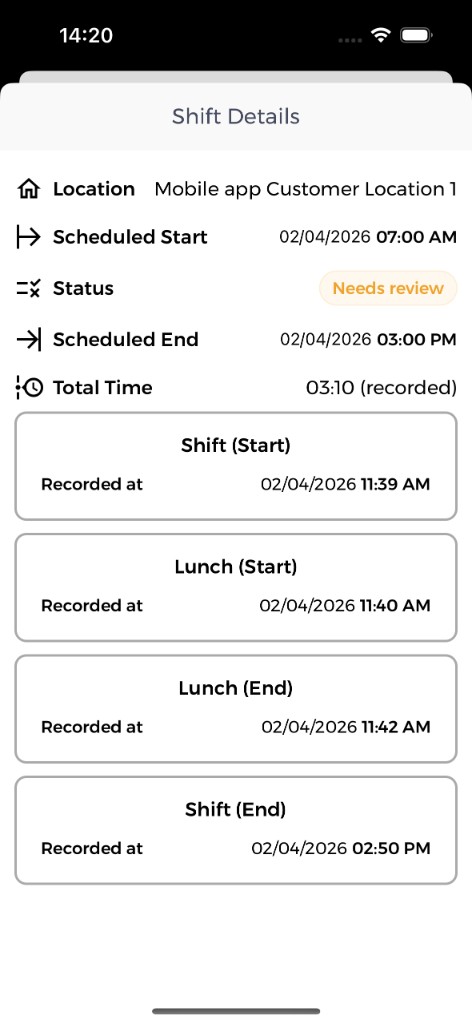
Step 5: Reviewing and Correcting Your Time After a Shift
After completing a shift, you can review your recorded times and request corrections from the Shift Details screen.
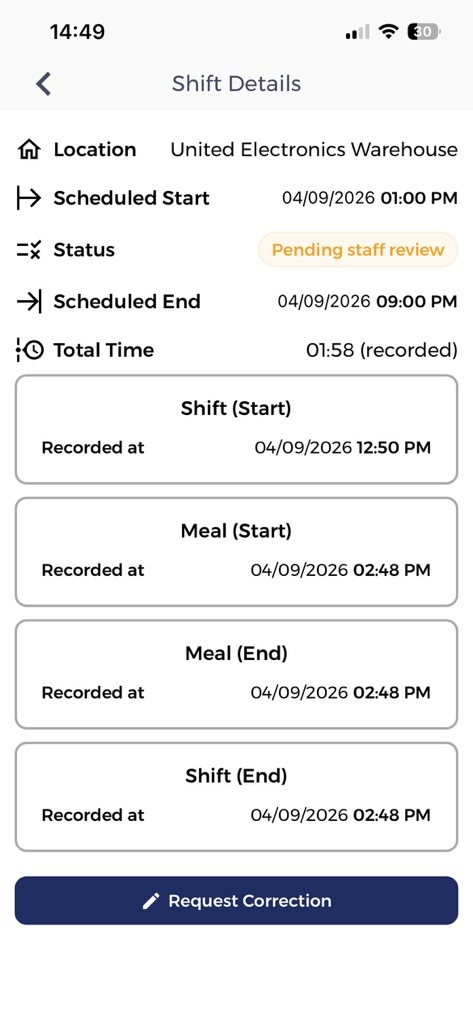
- Tap on a completed shift in the Calendar to open Shift Details.
- Review your clock-in time, clock-out time, and break durations.
- If a time is wrong, tap Request Correction.
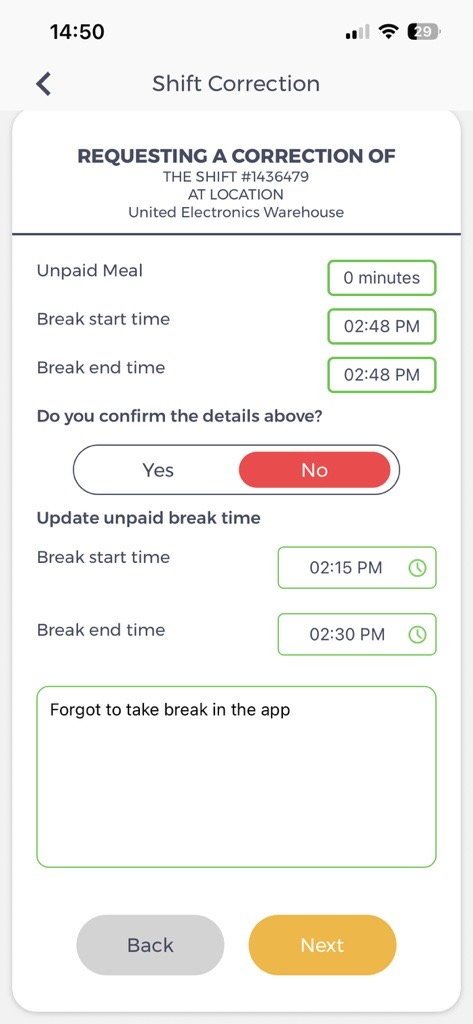
- The correction survey shows your recorded times — tap No if something needs to change.
- Adjust the break start/end times or clock-in/out times as needed.
- Add a note explaining the reason for the correction.
- Submit the correction — it follows the same approval workflow as clock-out adjustments.
Info
Corrections are reviewed by your staffing manager before they take effect. Submit corrections promptly while the shift details are fresh.
Step 6: Calling Out (If Unable to Work)
- If you are sick or unable to work a scheduled shift:
- Tap the Calendar tab in the bottom navigation bar.
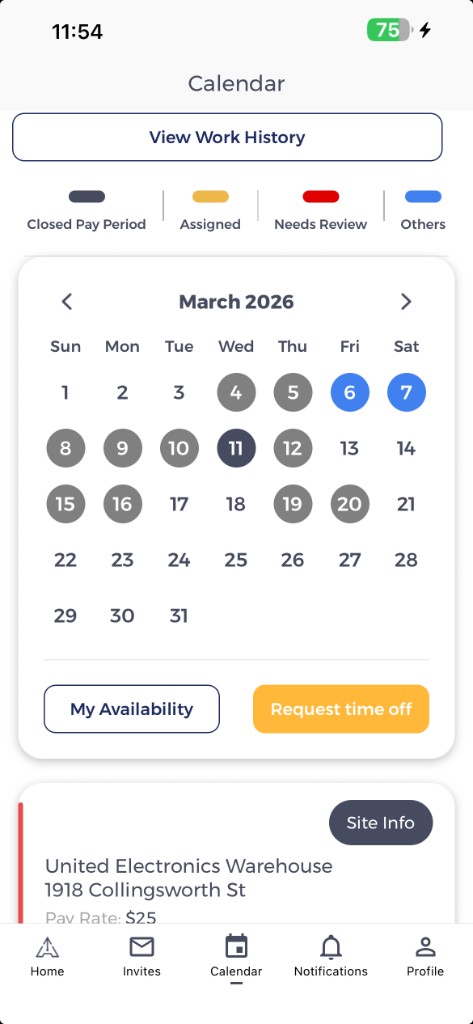
- Tap on the scheduled shift for the day you are unable to work.
- Click the Call Out button to notify your manager that you cannot attend.
- Ensure you notify as early as possible to allow for shift coverage.
Additional Notes
- Ensure you have a stable connection before checking in or out.
- Breaks must be recorded accurately for compliance and payroll accuracy.
- Use the Call Out feature responsibly and only when necessary.
- Double-check that your time is submitted correctly before exiting the app.