Requesting Time Off in the Array Corp Careers App
Step 1: Log into the App
- Open the Array Corp Careers mobile app on your device.
- Enter your username and password.
- Click Sign In to access your dashboard.
Step 2: Navigate to the Calendar
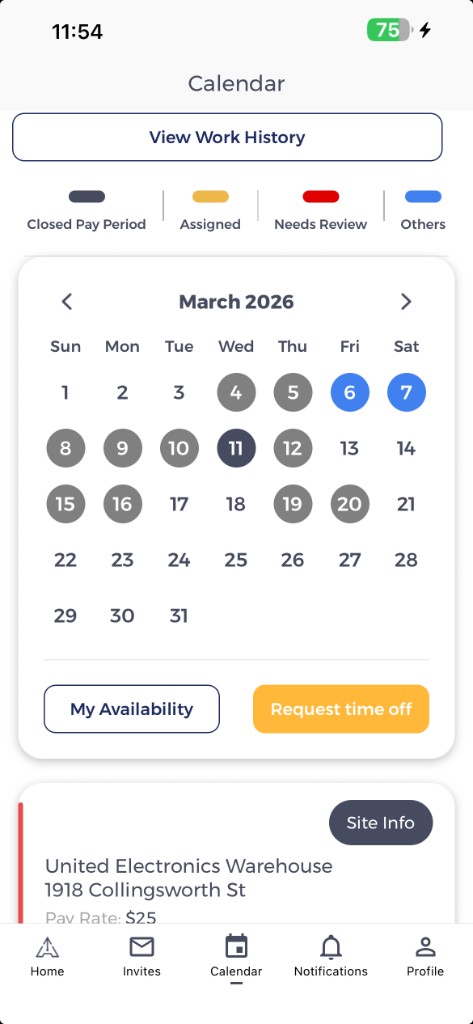
- Tap the Calendar tab in the bottom navigation bar.
- This will open your work schedule.
Step 3: Initiate a Time Off Request
- Tap on Request time off at the bottom of the Calendar screen.
Step 4: Select Your Time Off Dates
- Choose the start date for your time off.
- Confirm your selection by ensuring the correct date appears on the calendar.
- Choose the end date for your time off.
- Confirm your end date selection.
- In the text field, enter the reason for your time-off request.
- Be clear and concise about your request to ensure a smooth approval process.
Step 5: Submit Your Request
- Once all details are entered, tap Request to submit your time off request.
- You may receive a confirmation notification once your request is submitted.
- Await approval from your manager.
Reminders and Best Practices
- Request time off as early as possible to improve approval chances.
- Ensure you select the correct dates before submitting.
- If your request is urgent, notify your manager separately for faster processing.
- Check back in the app to confirm whether your request has been approved or denied.