Checking your Schedule in the Array Corp Careers App
Step 1: Log into the Array Corp Careers App
- Open the Array Corp Careers mobile app.
- Enter your username and password.
- Click Sign In to access your dashboard.
Step 2: Access Your Schedule
- Tap the Calendar tab in the bottom navigation bar.
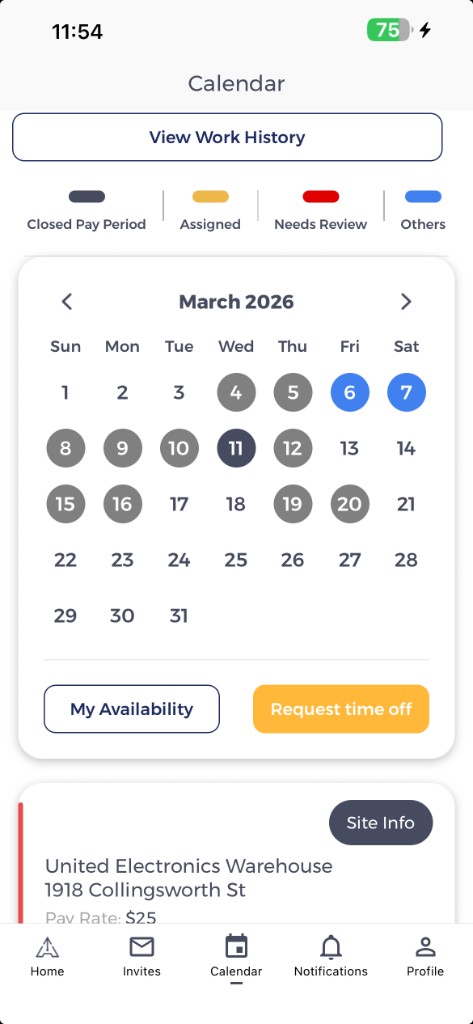
- This will take you to your schedule view.
Step 3: View Scheduled Shifts
- The days you are scheduled to work will be color-coded:
- Yellow — Assigned shifts
- Red — Needs Review
- Dark blue/gray — Closed Pay Period
-
Blue — Other events
-
Tap on a highlighted date to view shift details, including:
-
Shift time
- Job Location/Customer
- Worksite address
Step 4: View Your Work History
- From the Calendar tab, tap the Work History button at the top of the screen.
- Select a past week to view your completed shifts.
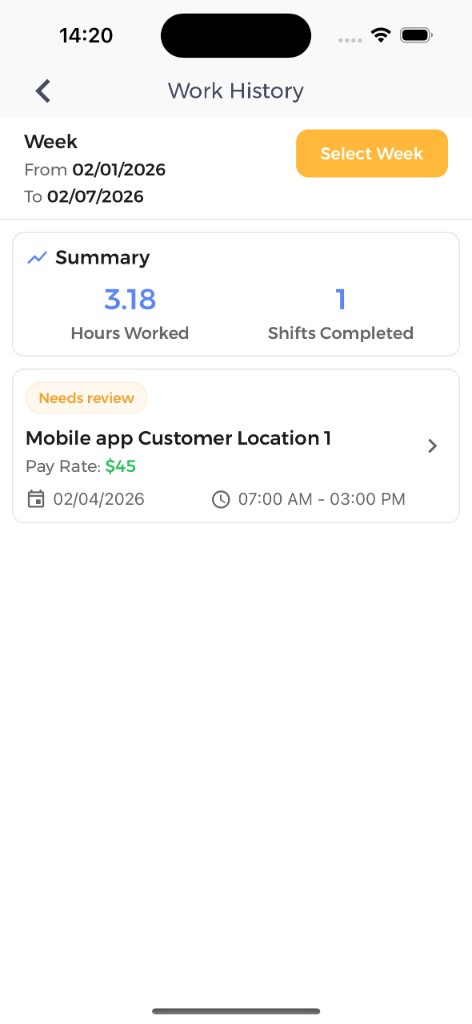
- Past shifts display your actual hours worked (clock-in and clock-out times) rather than the originally scheduled window, so your history reflects what you actually worked.
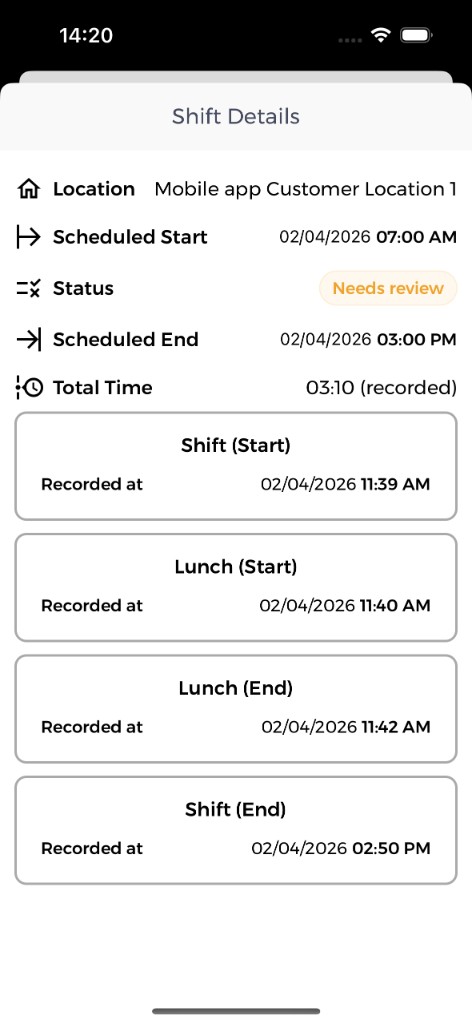
- Tap a shift to see full details including scheduled times, actual recorded punches, and the current approval status.
Reminders and Best Practices
- Always check your schedule in advance to confirm work dates and locations.
- Keep your app updated to ensure all features function properly.