Array Kiosk App – Time Tracking Guide
1. Open the Kiosk App
The main screen displays a list of employees at your location.
2. Locate Your Name
.png)
- Your name will appear under one of these categories:
- Scheduled Today
- Not Scheduled
- Currently Working
Use the scroll or search function if needed.
3. Enter Your PIN
.png)
- Tap your name and enter your 4-digit PIN.
- This is usually the last four digits of your phone number.
4. Confirm Clock-In
Once clocked in, your name will move to the “Active Employees” list.
✅ To take another action (like a break or clock out), simply tap your name again.
5. Take a Break
.png)
- If a break is available, a “Take a Break” button will appear.
- Tap the button to clock into your break.
6. While on Break
Your name will still appear under Active Employees, but now with an “On Break” label.
7. End Break
.png)
- Tap your name again and re-enter your PIN.
- The system will automatically clock you back in—no additional action is needed.
8. Watch for Notifications
Each successful action (clock-in, break, clock-out) triggers a confirmation message in the bottom right corner of the screen.
9. Clock Out at the End of Your Shift
.png)
- Tap your name and enter your PIN.
- If all breaks have been taken, the system will automatically proceed with clocking you out.
10. Confirmation Message
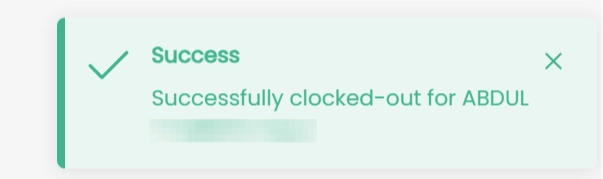
You’ll see a “Successfully clocked-out” message to confirm the end of your shift.
Helpful Tips
- If your PIN doesn’t work, contact your site supervisor to verify it.
- Make sure you’ve taken all required breaks before attempting to clock out.
- Kiosk screens may auto-refresh after periods of inactivity—just reselect your name.