How to Update the Array Corp Careers App
Keeping your app up to date ensures you have the latest features, bug fixes, and security improvements. There are two ways to update: from the in-app pop-up or manually from the app store.
Option A: Update from the In-App Pop-Up
When a new version is available, you will see a pop-up screen the next time you open the app.
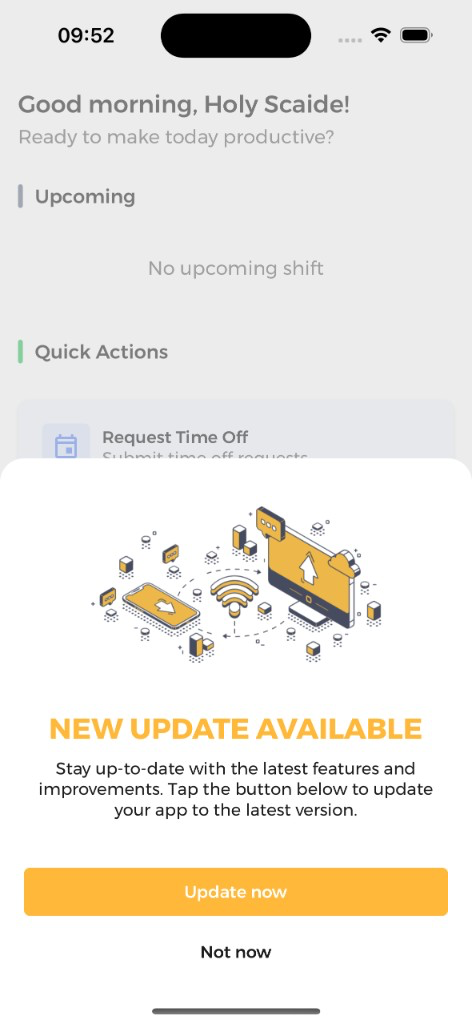
1. Tap "Update now"
- When you see the "NEW UPDATE AVAILABLE" pop-up, tap the yellow Update now button.
- You will be taken to your device's app store (App Store on iPhone, Google Play Store on Android).
2. Install the Update
- In the app store, tap Update (or Install if prompted).
- Wait for the download and installation to complete.
3. Reopen the App
- Once the update finishes, tap Open in the app store, or find the Array Corp Careers app on your home screen and open it.
- Log in if prompted.
Info
If you tap "Not now", the pop-up will appear again the next time you open the app. We recommend updating as soon as possible to avoid any issues.
Option B: Update Manually from the App Store
If you do not see the in-app pop-up, or if someone from your staffing agency or Array asks you to update, you can update directly from the app store.
iPhone (App Store)
1. Open the App Store
- Find and tap the App Store icon on your home screen.
- Or tap this link directly on your iPhone: Array Corp Careers on the App Store
2. Search for the App
- Tap the Search tab at the bottom of the screen.
- Type Array Corp Careers in the search bar and tap Search.
3. Tap Update
- If an update is available, you will see an Update button next to the app. Tap it.
- If you only see Open, your app is already up to date.
Info
Quick shortcut: You can also tap your profile icon (top-right corner of the App Store) and scroll down to see all available updates. Look for Array Corp Careers in the list and tap Update.
Android (Google Play Store)
1. Open the Google Play Store
- Find and tap the Play Store icon on your home screen.
- Or tap this link directly on your Android phone: Array Corp Careers on Google Play
2. Search for the App
- Tap the search bar at the top and type Array Corp Careers.
- Select the app from the results.
3. Tap Update
- If an update is available, you will see an Update button. Tap it.
- If you only see Open, your app is already up to date.
Info
Quick shortcut: Tap your profile icon (top-right corner of the Play Store), then tap Manage apps & device. Under "Updates available," look for Array Corp Careers and tap Update.
After Updating
- Open the Array Corp Careers app.
- Log in with your email and password if prompted. After certain updates, you may need to log in again — this is normal.
- Confirm you can see your dashboard, schedule, and other features as expected.
Troubleshooting
The update is not showing in the app store
- Make sure you are connected to Wi-Fi or mobile data.
- Pull down on the App Store or Play Store screen to refresh.
- Restart your phone and try again.
- If the update still does not appear, it may not have reached your region yet. Try again in a few hours.
The app asks me to log in after updating
- This is expected after certain updates. Enter your email and password as usual to log back in. If you have forgotten your password, use the Forgot Password option on the login screen.
The app is not working properly after updating
- Close the app completely and reopen it.
- If problems continue, delete the app and reinstall it from the app store using the links below:
- iPhone: https://apps.apple.com/us/app/array-corp-careers/id1671815656
- Android: https://play.google.com/store/apps/details?id=com.arraycrop.jobs&hl=en_US
- After reinstalling, log in with your email and password.
The app seems to load but nothing works (pages are blank, actions fail, or data does not load)
- This can happen if you are on an older version of the app. Update to the latest version using the steps above.
- If you have already updated and the problem persists, try logging out and logging back in: go to your profile or settings and tap Log Out, then log in again.
Warning
If the app is not responding at all or you are stuck on a blank screen, please update the app first. If the issue continues after updating, contact your staffing agency or Array support for help.