Timesheets — Customer Guide
Overview
The Timesheets screen gives you a single view of all timecards for associates working at your locations. You can follow every timecard through its full lifecycle — from initial entry, through staff review, to your approval and payroll processing — all on one screen.
Your primary action is approving or disputing timecards in the Pending Customer Review tab, but you have full visibility into every other stage as well, including historical payroll records.
Who This Guide Is For
This guide is for customers who review and approve timecards for associates working at their locations. As a customer, you can view all timecard details and notes, approve or dispute entries, and add notes — but you cannot directly edit an associate's hours.
Getting Started
- In the left sidebar, navigate to Timesheets.
- Use the filters at the top to narrow your view:
- Customer location — select your specific site(s)
- Employee — search for a specific associate
- Date range — defaults to the current pay period
- Click Apply Filters to refresh the results.
Understanding the Tabs
You can see all five status tabs and the count badge on each. You have visibility into the full cycle — just like the associate and staffing team — but you can only take action on timecards in the Pending Customer Review tab.
| Tab | What It Means for You |
|---|---|
| Pending Associate Action | Shifts waiting for the associate to enter hours. View-only — no action needed from you yet. |
| Pending Staff Review | Timecards being reviewed by the staffing team. View-only — no action needed. |
| Pending Customer Review | Action needed. These timecards have been reviewed by the staffing team and are ready for your approval or dispute. |
| Approved | Timecards you've approved (or that were approved on your behalf). Ready for payroll. You can still reopen for review if needed. |
| Payroll Processed | Finalized timecards. A complete historical record of all processed hours for your locations. |
Info
The Pending Customer Review tab is your primary workspace. This is where timecards land after the staffing team has reviewed and validated them. All other tabs are available for full visibility into the pipeline.
Reviewing and Approving Timecards
Viewing Timecard Details
- Navigate to the Pending Customer Review tab.
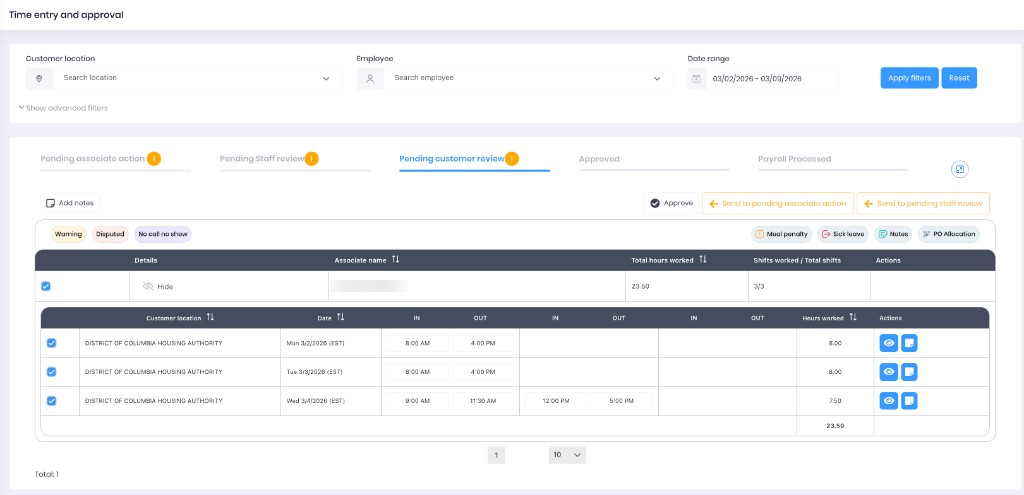
- Click Show next to an associate's name to expand their shift rows.
- Each shift row shows: customer location, date, IN/OUT times, break times, and hours worked.
Click the eye icon (blue button) in the Actions column of any shift row to open a detail panel with additional information such as notes, sick leave, and PO allocation. The details shown may vary depending on the time entry method the associate used (web, mobile, or kiosk).
Approving Timecards
When you've reviewed a timecard and the hours are correct:
- Select one or more shift rows using the checkboxes.
- Click Approve in the toolbar.
- The selected timecards move to the Approved tab.
You can approve individual shifts or select multiple shifts at once for bulk approval.
Disputing Timecards
If the hours on a timecard don't look right, you can dispute it by pushing it back to the associate or the staffing team for correction.
Sending Back to the Staffing Team
- Select the timecard(s) you want to dispute.
- Click Send to Pending Staff Review in the toolbar.
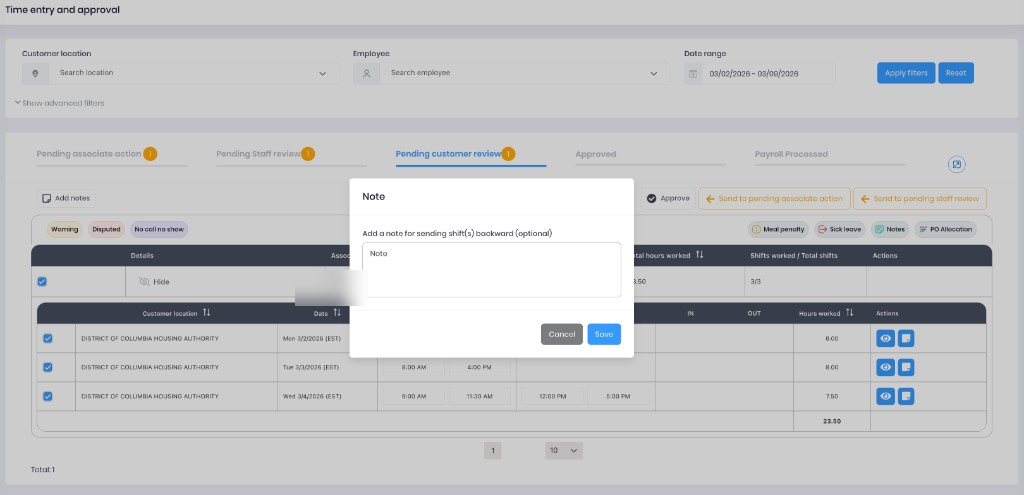
- A note dialog appears — a note is required when sending timecards backward. Enter a clear explanation of the discrepancy (e.g., "Hours don't match scheduled shift on 3/4").
- Click Save to submit.
Sending Back to the Associate
- Select the timecard(s) you want the associate to correct.
- Click Send to Pending Associate Action in the toolbar.
- A note dialog appears — a note is required. Describe what the associate needs to fix (e.g., "Please confirm break times for Wednesday").
- Click Save to submit.
The disputed timecard will move to the selected tab. You'll see it return to Pending Customer Review once the correction has been made.
Warning
When pushing a record back to Associate or Staff, you must include a note. The note field is required so the staffing team or associate understands what needs to be corrected.
Disputing After Approval
If you've already approved a timecard but later discover an issue:
- Go to the Approved tab.
- Find the timecard and select it.
- Click Reopen for Review to send it back to the staffing team.
Warning
Once a timecard moves to Payroll Processed, it can no longer be disputed or modified through this screen. If you discover an issue after payroll processing, contact your staffing manager directly.
Adding Notes
You can add notes to multiple timecards at once to communicate with the staffing team:
- Select one or more shift rows using the checkboxes.
- Click Add Notes in the toolbar.
- Type your note and click Save.
The note is attached to all selected timecards in a single action. Your notes are visible to the staffing team and help them understand any concerns or context.
Viewing Historical Data
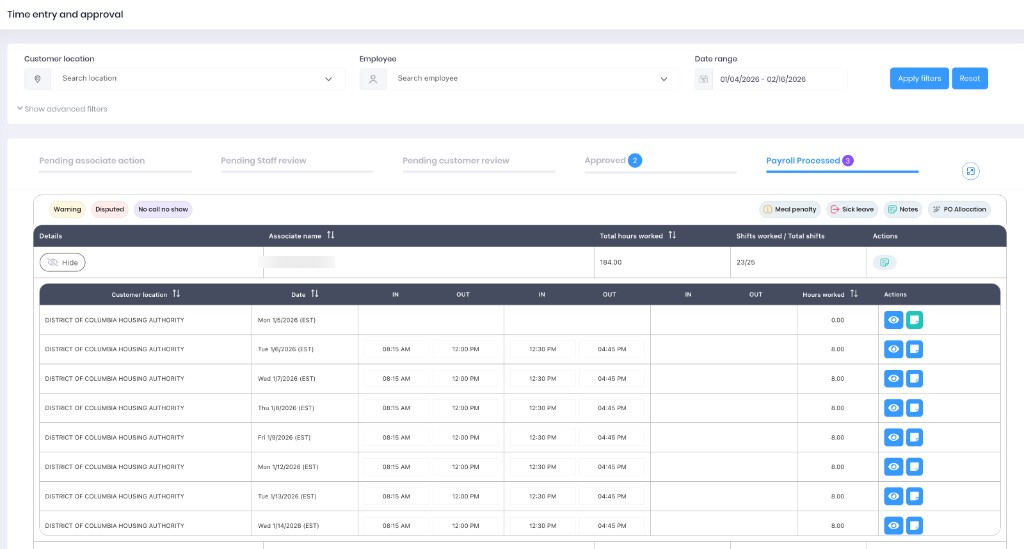
You have access to the full history of timecards at your locations. Use the Date range filter to look back at any previous pay period — there is no limit on how far back you can go.
- Click the Date range field at the top of the screen.
- Set the start and end dates for the period you want to review.
- Click Apply Filters to load the results.
- Navigate to any tab to see timecards from that period — including Payroll Processed for finalized records.
Info
This is useful when reconciling invoices, reviewing past pay periods, or checking historical attendance patterns. Adjust the date range as wide as needed — for example, set it to a full month to see all processed timecards at once.
Tips & Best Practices
- Review the Pending Customer Review tab regularly. Timecards waiting for your approval can delay payroll if not acted on promptly.
- Use the date range filter. Set it to your current pay period so you focus on the timecards that matter for the upcoming payroll cycle.
- Always include a clear note when disputing. Since a note is required when sending timecards back, a specific explanation (e.g., referencing a date or shift) helps the staffing team or associate make the right correction the first time.
- Check warnings before approving. If a timecard has a warning indicator, expand the details to understand the issue before approving.
- Bulk approve when possible. If everything looks correct, select multiple timecards and approve them all at once to save time.
- Use historical data for reconciliation. Adjust the date range to review processed timecards when cross-referencing invoices or attendance records.
Troubleshooting
| Issue | Solution |
|---|---|
| I don't see any timecards in Pending Customer Review | Check the date range filter — it may not cover the period you're looking for. Also confirm the staffing team has completed their review (check if timecards are still in Pending Staff Review). |
| I approved a timecard by mistake | Go to the Approved tab, find the timecard, and click Reopen for Review to send it back. This must be done before the timecard is processed for payroll. |
| I can't edit the hours on a timecard | As a customer, you cannot directly edit hours. Dispute the timecard by sending it back to Pending Staff Review or Pending Associate Action with a note explaining the correction needed. |
| I see timecards for locations that aren't mine | Check the Customer location filter and select only your assigned locations. If incorrect locations persist, contact your staffing manager to verify your location assignments. |
| I can't find historical timecards | Expand the Date range filter to cover the period you're looking for, then check the Payroll Processed tab. There is no limit on how far back you can search. |