Clark Personnel - SelfServe Guide
Welcome to Oasis SelfServe
SelfServe is your one stop portal for approving your Employee hours, viewing reports created specifically for you, accessing electronic invoice copies, and keeping track of all Employees that have worked for you. SelfServe provides you with the tools you need to access information most important to you.
The following guide will assist you in logging into SelfServe to access your reports and invoice copies.
When you access the link to the SelfServe site, the following screen will be displayed:
https://portal.pfd.snb.com/?L=1800004
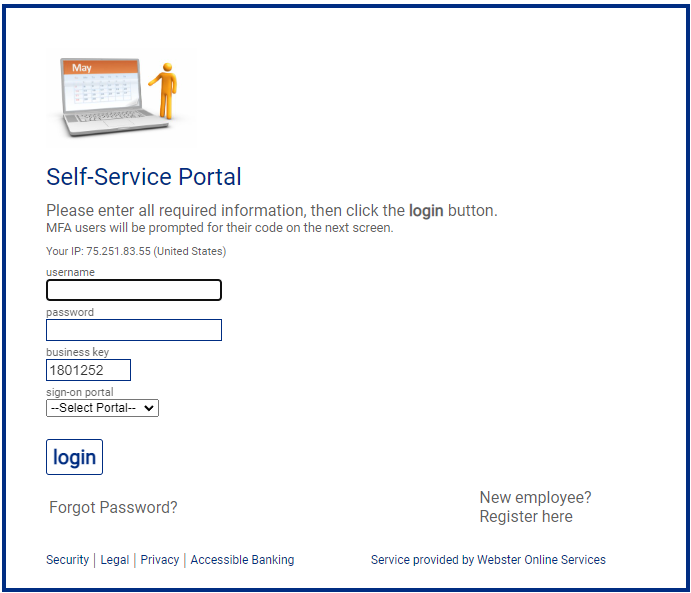
Enter assigned business key here and select “Customer” portal.
Under “sign-on portal” select “Customer Portal”
For your convenience, your username and password will be your email address for the initial login. Once you login, you will be asked to change your password to something more secure.
Your Business Key is: 1800004
Please note if you should forget your password at any time, you would have to contact your Staffing Agency Representative.
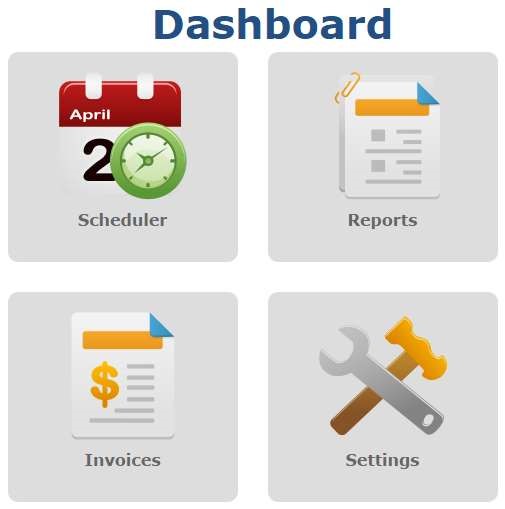
After your successful login, the Dashboard will be displayed.
Retrieve Customer Invoice
Upon logging in, the Retrieve Customer Invoice page will be displayed with instructions on how to view and download their invoices.
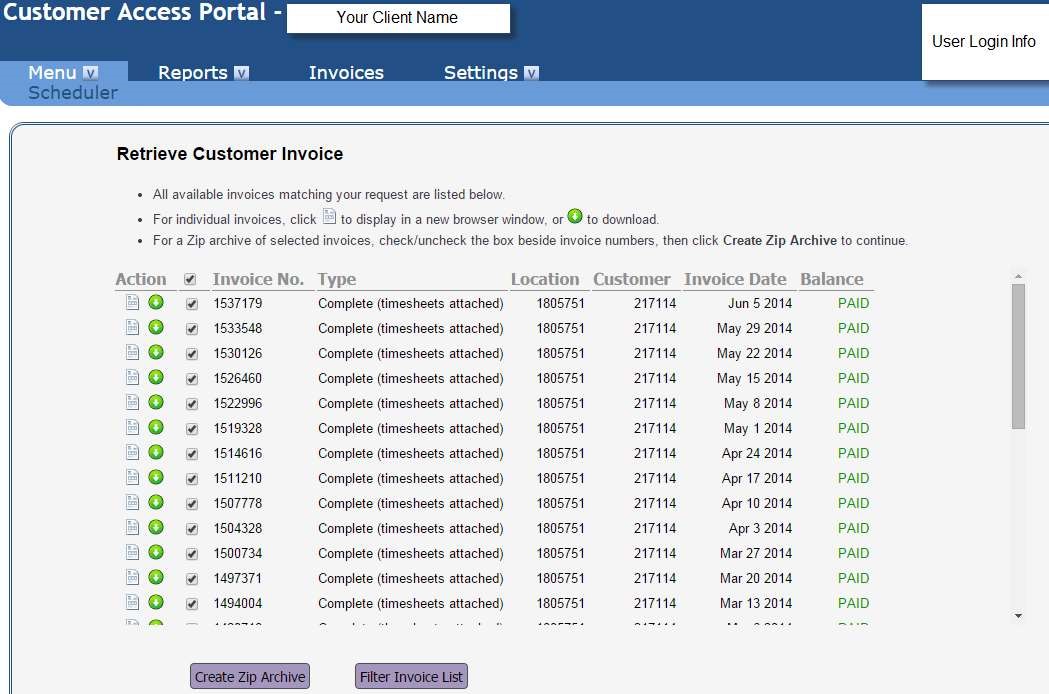
To retrieve or view specific invoices, click the Filter Invoice List button:
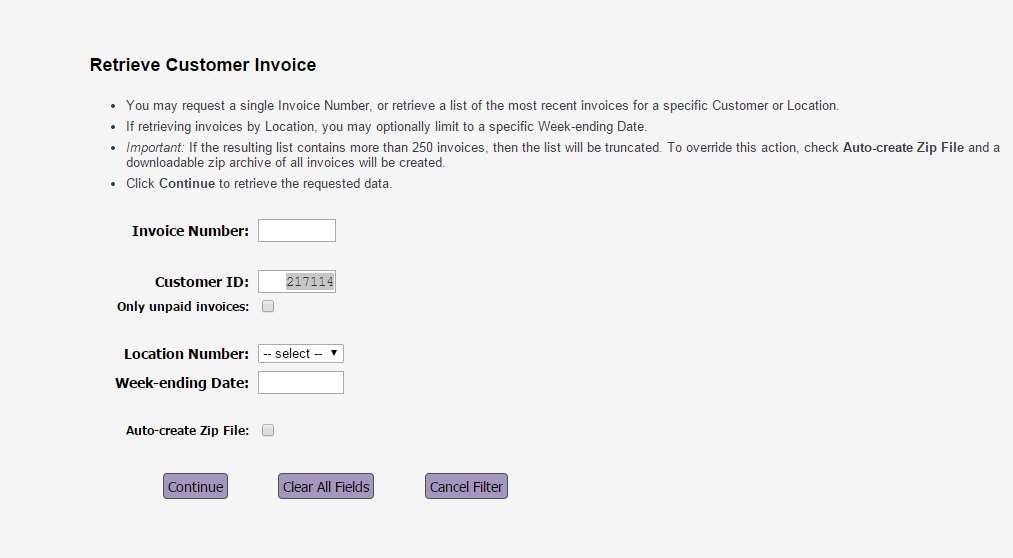
To return to the invoice listing, click the Invoice button on the top menu bar.
Reports
In addition to managing your employee’s time, the SelfServe module gives you easy access to reports you may find helpful.
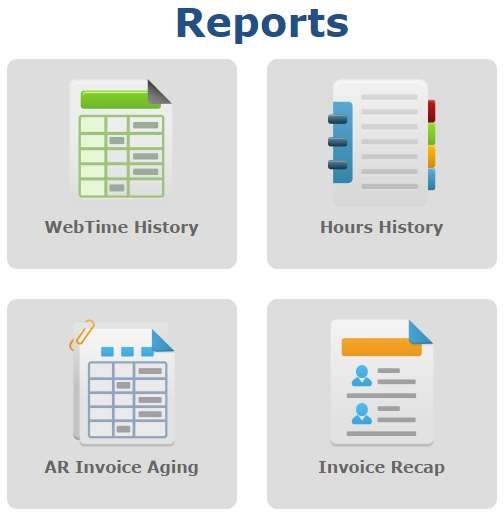
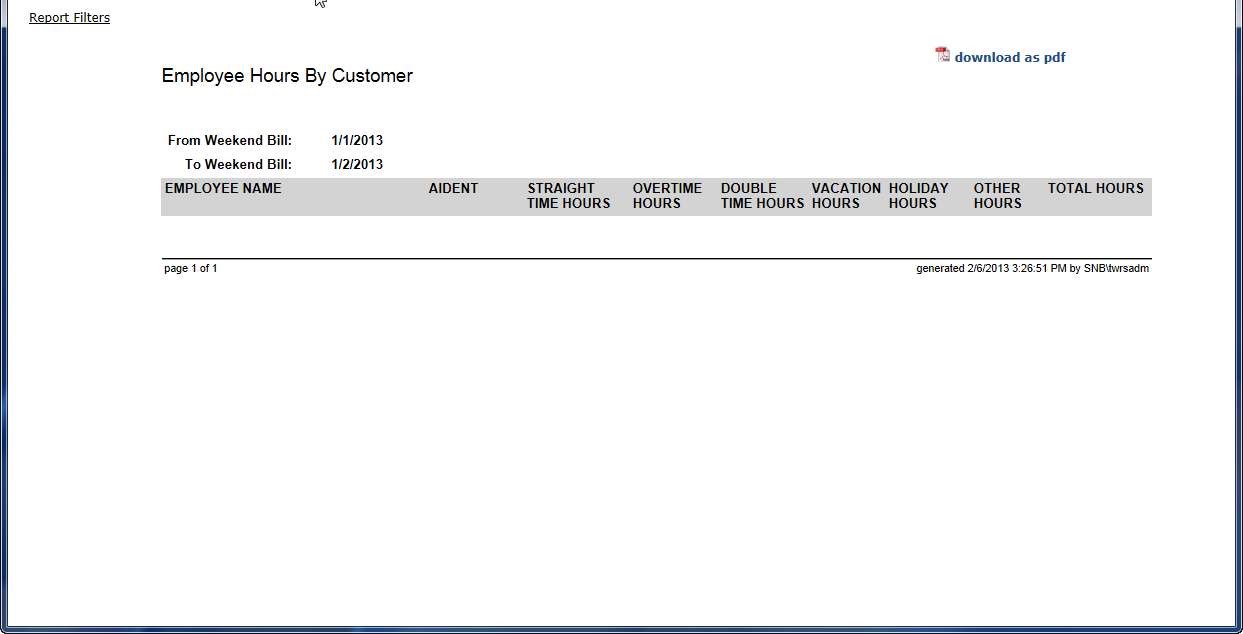
Employee Hours By Customer
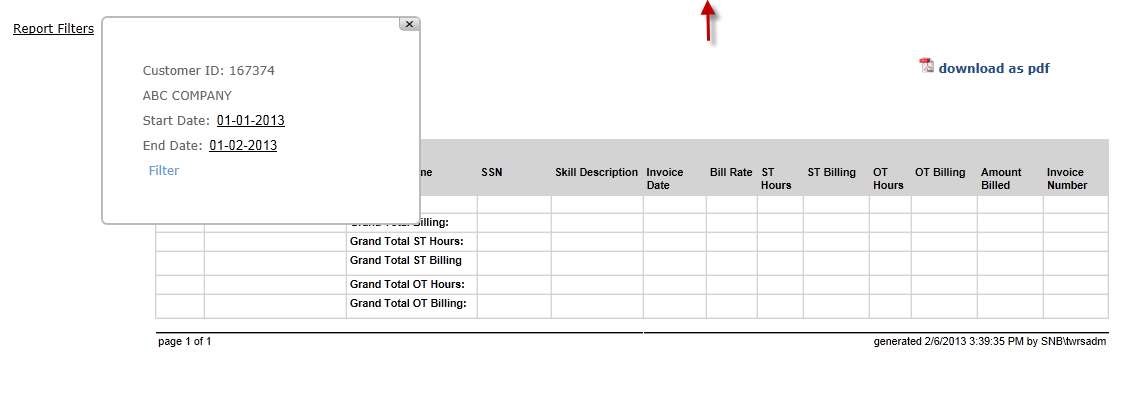
This report will list all your hours by employee and department to help you manage your time and budgets. To expand the date range or list multiple customer/department IDs, click on Report Filter.
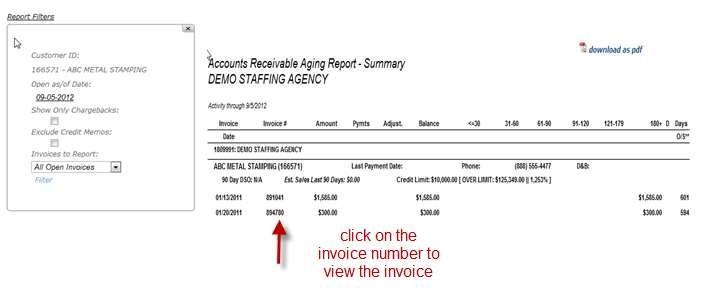
AR Invoice Aging
The AR Invoice Aging Summary will give you the ability to manage your accounts receivable and obtain copies of any associated invoice. This report can be filtered by days open or display any credits applied. By clicking on the invoice number displayed on the report you will be able to view, print or download your invoice copies.
Invoice Recap
The Invoice Recap will give you a complete listing of all employees including invoice date and skill with a break-down of all pay types. A date range can be used to run this report for any time period you wish.
Settings
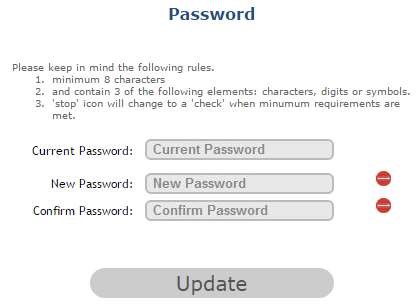
Under the Settings option, you have the ability to change your password, view your login history or change the range of dates that will appear on the Scheduler and when approving time.
Password
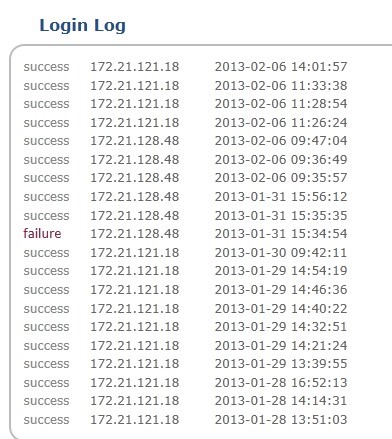
Login History
For security purposes, the system will keep track of your login history and the IP address used to access the system.